
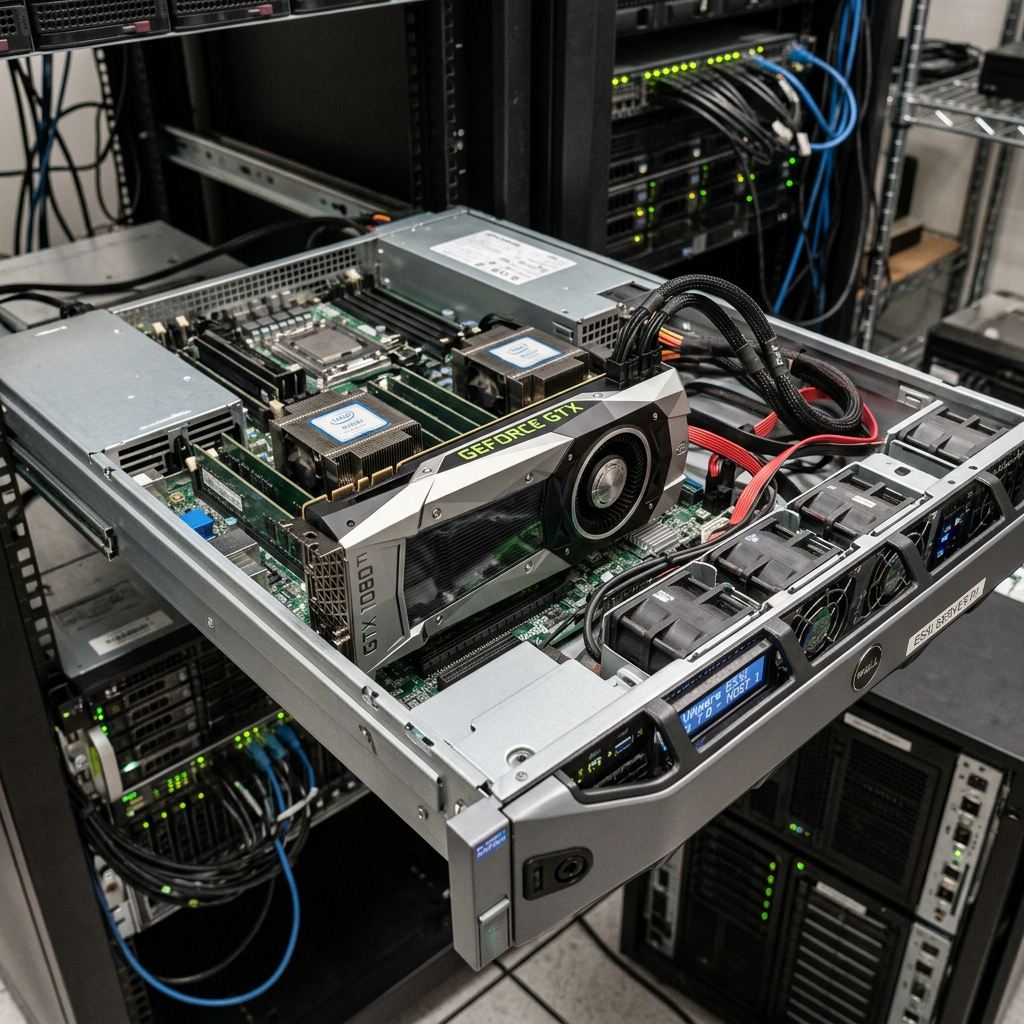
This is a very well-known quirk when passing through consumer Nvidia GPUs (especially the Pascal architecture, like your GTX 1080 Ti) to VMs in ESXi.
When the ESXi host boots, it attempts to initialize the GPU for its own display console, or it fails to perform a clean PCI reset. This leaves the GPU in a “stuck” state. Toggling passthrough off and on forces ESXi to cleanly release and re-initialize the device mapping, which is why your manual workaround succeeds.
Here are two approaches to solve this. Approach 1 attempts to fix the root cause, and Approach 2 is exactly the script automation you asked for.
Approach 1: The “Better” Solution (Fix the Root Cause)
Before resorting to a startup script, you can try to prevent ESXi from claiming the GPU during boot or change how ESXi resets the card.
Option A: Disable ESXi from using the VGA console
If the 1080 Ti is the primary GPU in the system, ESXi will try to grab it for the yellow/grey boot screen. Disabling this forces ESXi to leave the GPU alone.
- Run the following command to disable the ESXi VGA console:
- Enable SSH on your ESXi host and log in.
esxcli system settings kernel set -s vga -v FALSE - Reboot the ESXi host and see if the VM starts normally.
Option B: Change the Reset Method in passthru.map
ESXi has a configuration file that dictates how specific PCI devices are reset. Nvidia consumer cards often need a specific reset method (d3d0 or link).
Save the file, reboot the host, and test.
- Find your GPU’s Vendor and Device ID by running:
lspci -v | grep -i nvidia (For a 1080 Ti, the Vendor ID is usually 10de and the Device ID is 1b06)
2. Edit the passthrough map file:vi /etc/vmware/passthru.map
3. Add the following lines to the very bottom of the file (replace 1b06 if your device ID is different):#NVIDIA 1080 Ti
10de 1b06 d3d0 false
4. Save the file, reboot the host, and test.
Approach 2: The CLI Automation Script
If the permanent fixes don’t work (which is entirely possible with consumer GPUs), your idea of a startup script is the best fallback.
We will place this script in /etc/rc.local.d/local.sh, which ESXi executes at the very end of the boot sequence.
Important Note on Autostart: Because local.sh runs late in the boot process, if your VM is set to autostart normally via the ESXi UI, it will likely try to start before the script toggles the GPU, causing it to fail. To fix this, disable Autostart for this VM in the ESXi UI and let our script power on the VM instead.
Step 1: Get your PCI IDs and VM ID
- Run this command to list your passthrough devices and note the PCI addresses (e.g.,
0000:01:00.0for the GPU and0000:01:00.1for the GPU audio):esxcli hardware pci pcipassthru list - Run this command to get your VM’s ID (Vmid):
vim-cmd vmsvc/getallvms
Step 2: Create the Script
- Edit the local startup script:
vi /etc/rc.local.d/local.sh - Add the following code above the
exit 0line. Replace the PCI addresses with yours, and replace<VM_ID>with your actual VM ID number.# Wait a moment to ensure host networking and services are fully up
sleep 15
# Toggle Passthrough OFF for GPU and Audio
esxcli hardware pci pcipassthru set -d "0000:01:00.0" -e false
esxcli hardware pci pcipassthru set -d "0000:01:00.1" -e false
# Short pause to let the system process the release
sleep 5
# Toggle Passthrough ON for GPU and Audio
esxcli hardware pci pcipassthru set -d "0000:01:00.0" -e true
esxcli hardware pci pcipassthru set -d "0000:01:00.1" -e true
# Pause to let the hardware re-initialize
sleep 10
# Power on the Virtual Machine vim-cmd vmsvc/power.on <VM_ID>
Step 3: Save and Test
- Save the file in
viby typing:wqand pressing Enter. - Reboot your ESXi host.
What will happen now: The host will boot completely. About 15 seconds later, it will automatically flip the 1080 Ti off and back on in the background, wait 10 seconds for it to settle, and then power on your VM.
Leave a Reply